Odoo How to Change Invoice Template: Complete Guide for Odoo
If you are searching for how to change the invoice template in Odoo, you can customize your invoice design without rebuilding the entire accounting system. Odoo 17, Odoo 18, and Odoo 19 provide standard document layouts, while Odoo Studio and QWeb can handle more advanced invoice customization.
For businesses in Germany, Europe, and the USA, invoice customization is particularly important when moving from another ERP or accounting platform to Odoo.
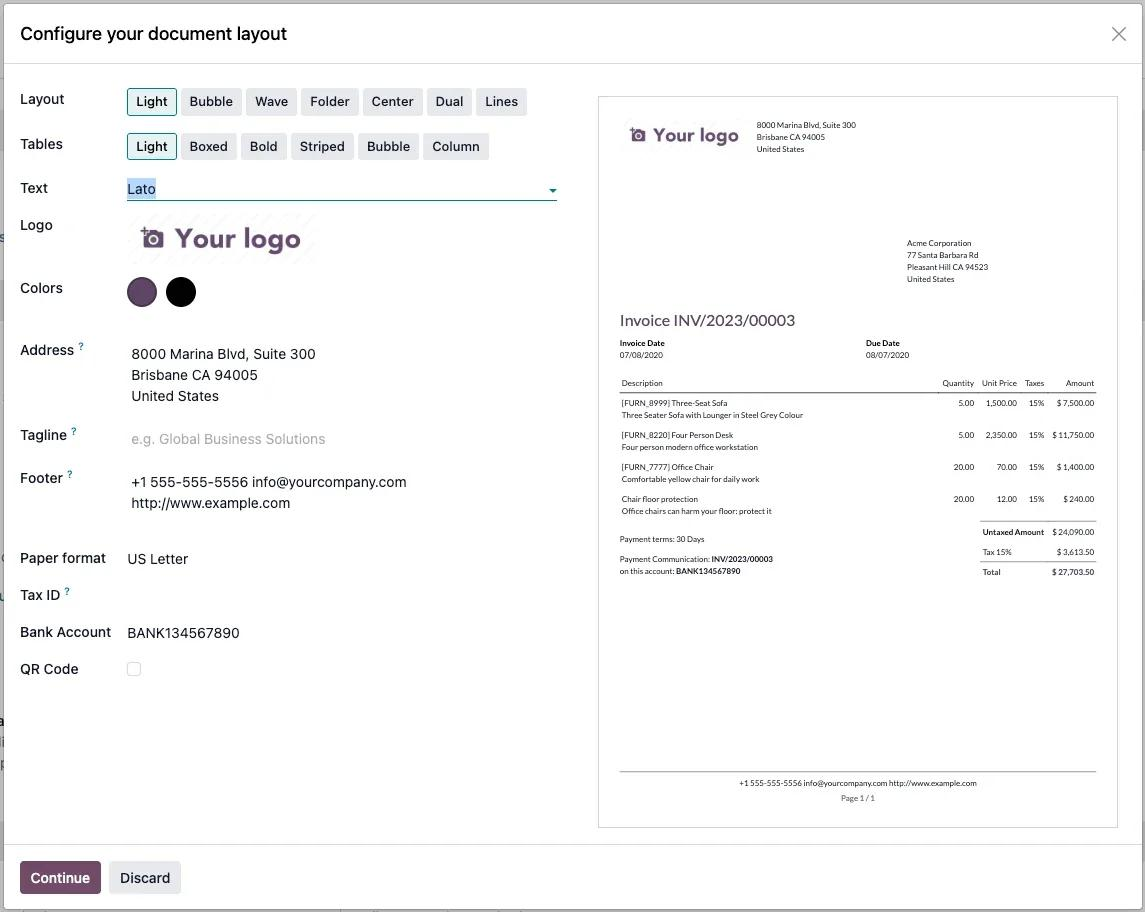
Odoo 19 provides several report layouts, including Light, Boxed, Bold, Striped, Bubble, Wave, and Folder. You can also configure the company logo, fonts, colors, address, tagline, footer, background, and paper format.
How to Change the Invoice Template in Odoo
To change the standard invoice design:
Settings → Companies → Configure Document Layout
From this screen, you can select a layout and immediately preview how your documents will look.
1. Change the Invoice Layout
Choose the design that best matches your company's branding.
Odoo 19 includes seven standard layouts:
- Light
- Boxed
- Bold
- Striped
- Bubble
- Wave
- Folder
The selected document layout is company-specific and applies to the company's reports.
2. Add Your Company Logo
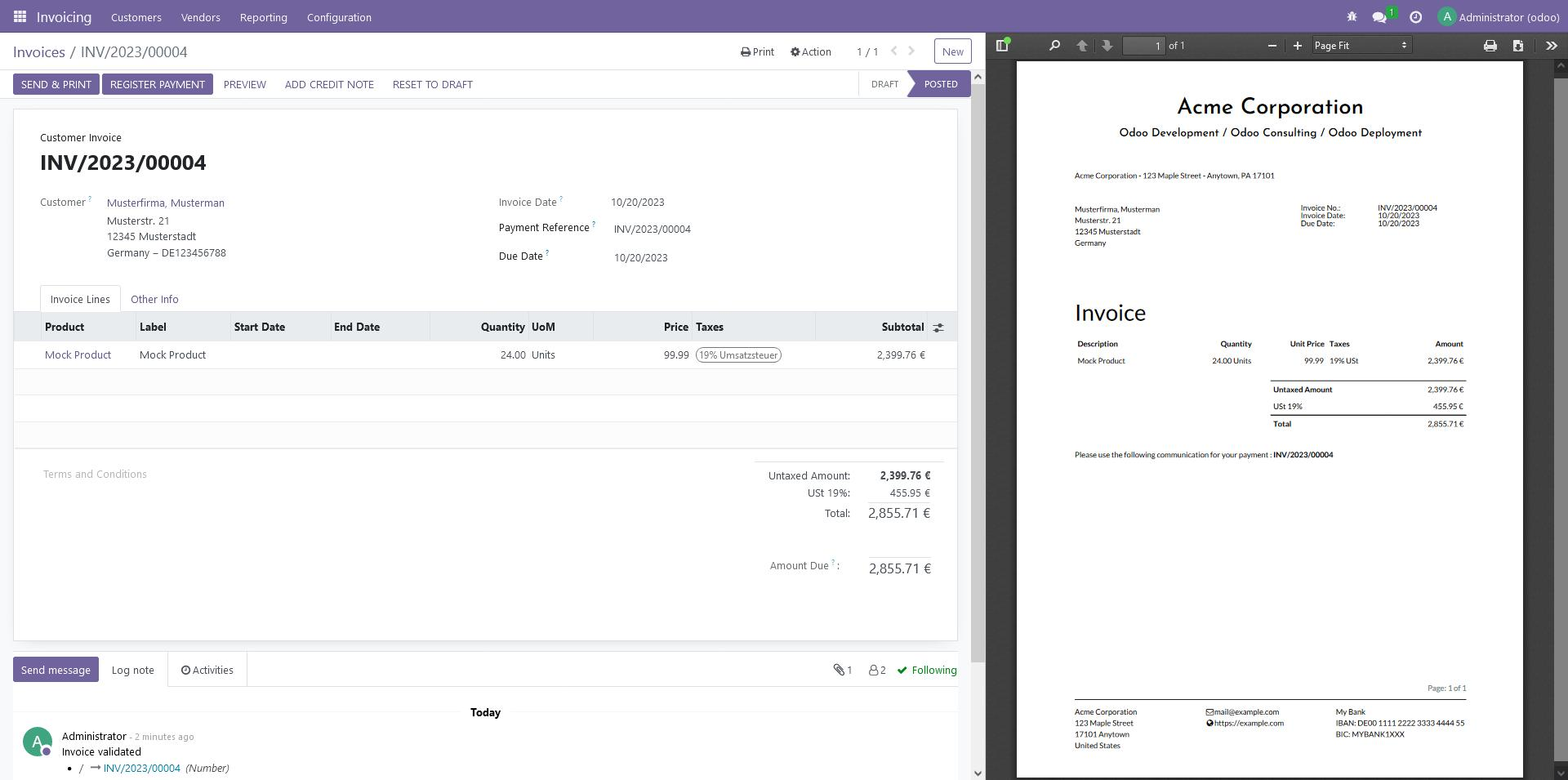
Upload your company logo and check the invoice preview.
A professional invoice should clearly display your company identity, customer information, invoice number, invoice date, payment terms, tax information, and totals.
For Germany-based businesses, also verify that your VAT and company information is correctly configured before sending invoices to customers.
3. Change Invoice Colors and Fonts
Odoo allows you to customize the visual appearance of reports using available fonts and primary and secondary colors.
This is useful when you want your Odoo invoices to match your website and corporate branding.
4. Select A4 or US Letter
Odoo 19 supports A4 and US Letter paper formats through the document layout configuration.
A4 is generally the practical choice for businesses operating in Germany and much of Europe, while US Letter may be more appropriate for some US operations.
How to Customize an Odoo Invoice With Studio
Standard document layouts may not be enough for every business.
For example, you may need to add:
- Customer reference numbers
- Additional invoice fields
- Payment instructions
- Custom terms and conditions
- Project information
- Delivery information
- German business information
- Custom invoice headers and footers
- Additional invoice line columns
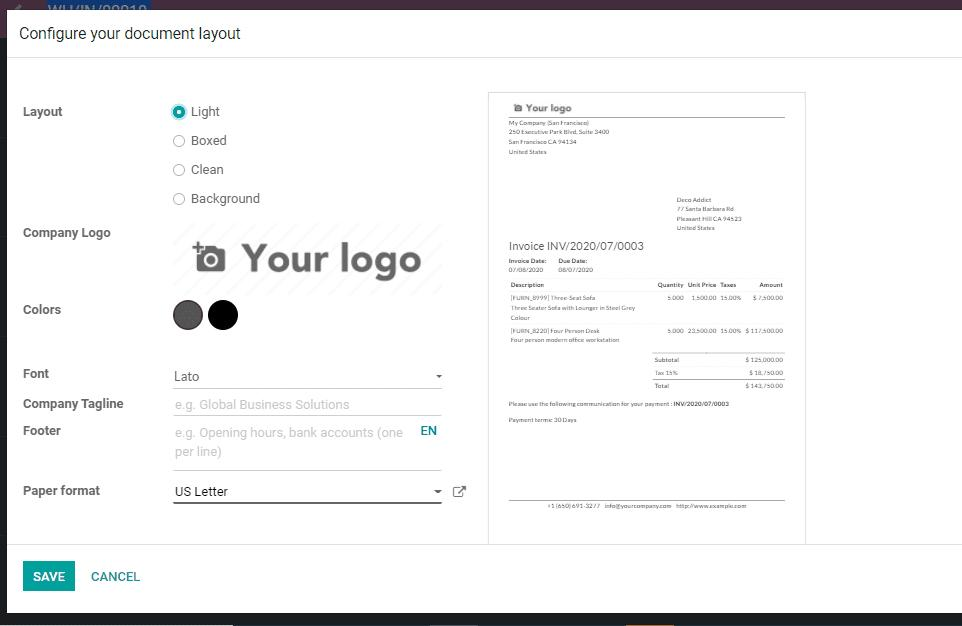
Odoo Studio allows you to edit existing PDF reports such as invoices and quotations. Odoo recommends duplicating the standard report before making substantial changes.
Go to the relevant Odoo model, activate Studio, open Reports, and select the invoice report.
You can then modify fields, tables, text, formatting, images, and other report elements.
Advanced Odoo Invoice Template Customization With QWeb
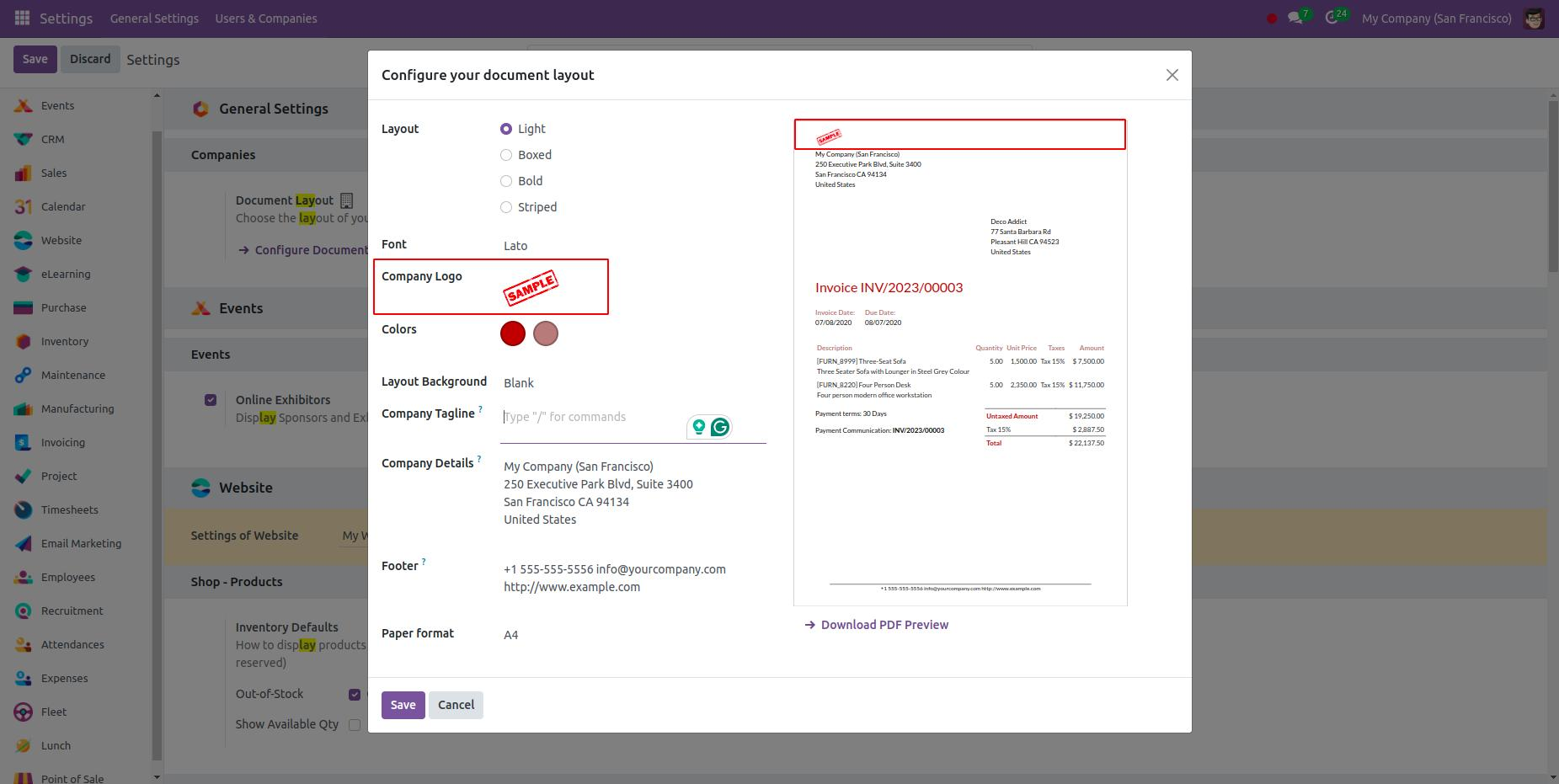
For complex invoice requirements, an Odoo developer can customize the QWeb report template.
QWeb is the reporting technology used by Odoo for PDF reports. Developers can inherit existing report templates and use XML/XPath to add or modify invoice content.
This approach is useful when you need different invoice layouts based on customers, companies, countries, products, or business conditions.
For example, an international company might require different invoice information for Germany, the USA, or other markets.
Odoo Invoice Template Customization for German Businesses
Changing an invoice design is not only a branding exercise.
German companies should verify their invoice configuration against their accounting workflow, VAT setup, company information, and payment details — and if DATEV is part of that workflow, test the invoice template as part of the full integration rather than as a separate design task.
If you're migrating from SAP, Microsoft Dynamics, NetSuite, QuickBooks, or another ERP, the same applies: test invoice templates as part of the complete implementation, not in isolation.
Odoo Invoice Implementation Experience
I've customized invoice templates as part of full implementations for clients including High Moon Rentals and Rheintal Armaturen, across Odoo 17, 18, and 19. The pattern that holds every time: invoice configuration should be designed around the complete business process — sales, invoicing, accounting, reporting, and customer communication — not treated as a standalone design task.
Should You Use Odoo Studio or Custom Development?
Use the standard Document Layout when you need basic branding changes.
Use Odoo Studio when you need additional fields, tables, text, images, or moderate report modifications.
Use QWeb/custom development when the invoice requires complex business logic or a highly customized design.
For upgrade-sensitive implementations, avoid unnecessary modifications to standard Odoo reports. A clean customization strategy makes future Odoo upgrades and migrations easier.
Need Help Changing Your Odoo Invoice Template?
If you need help with invoice customization, Odoo Studio work, or Germany-focused accounting configuration alongside a broader Odoo implementation, get in touch.
Frequently Asked Questions
Can I change an Odoo invoice template without coding? Yes. Standard document layouts and Odoo Studio can handle many invoice customization requirements.
Can I add custom fields to an Odoo invoice? Yes. Odoo Studio can add fields and report content, while QWeb provides deeper customization.
Does Odoo support A4 invoices? Yes. Odoo 19 supports A4 and US Letter paper formats.
Does this work in all Odoo versions? Yes. The exact interface and available features can vary between versions, but invoice reports can be customized across these Odoo versions.
Should I customize the invoice before migrating to Odoo? Ideally, define your invoice requirements during the implementation and migration planning stage — that's how you make sure accounting, customer data, taxes, payment terms, and reporting all work together correctly instead of being patched afterward.